Report and dashboard
Salesforce offers a powerful package of reporting tool. We use report and dashboard to convert business desires into visualize type .Using this tool we will grow our business.
What is report?
Report is a group of records it is used to display records in terms of row and column like excel and can be filtered,grouped and displayed in visualize type.When you create report in salesforce you fill some criteria then you get criteria based mostly answer.
Types of report
Salesforce offers different types of reports in order that we will build our report .there are four types of report which provide additional flexibility to our records and showing different type of data, depending on what you wish out of a report.
- Tabular Report-
Tabular reports are the simplest and fastest form of showing reports it is by default and show the record like spreadsheet and consist set of field as column and records as row. Tabular report provide us a list of record with single grand total.
- Summary Report-
Summary report is similar to tabular report but it’s also offer to users to view subtotals, create chart and group the data base on row.
- Matrix Report-
Matrix report are similar to summary report but it’s also offer users to group and summarize of records by both row and column to see different total.
- Joined Report-
Joined report give us five report blocks for create multiple view of your records.we can add multiple report type in joined report.
How to create Report in Salesforce
Salesforce provide Report Builder for creating report which is drag and drop type. Using report builder we can easily create report by clicking fileds,filters ,range etc.
First thing you have to make sure that enabled the report builder if it is not enabled then go to enable this for all users .
Go to setup and write in Quick find box Report and Dashboard setting then select Report and Dashboard setting ,review the report builder upgrade section page and enabled it.If you don’t see this button its mean Report Builder is enabled for your organization
Steps for creating Report
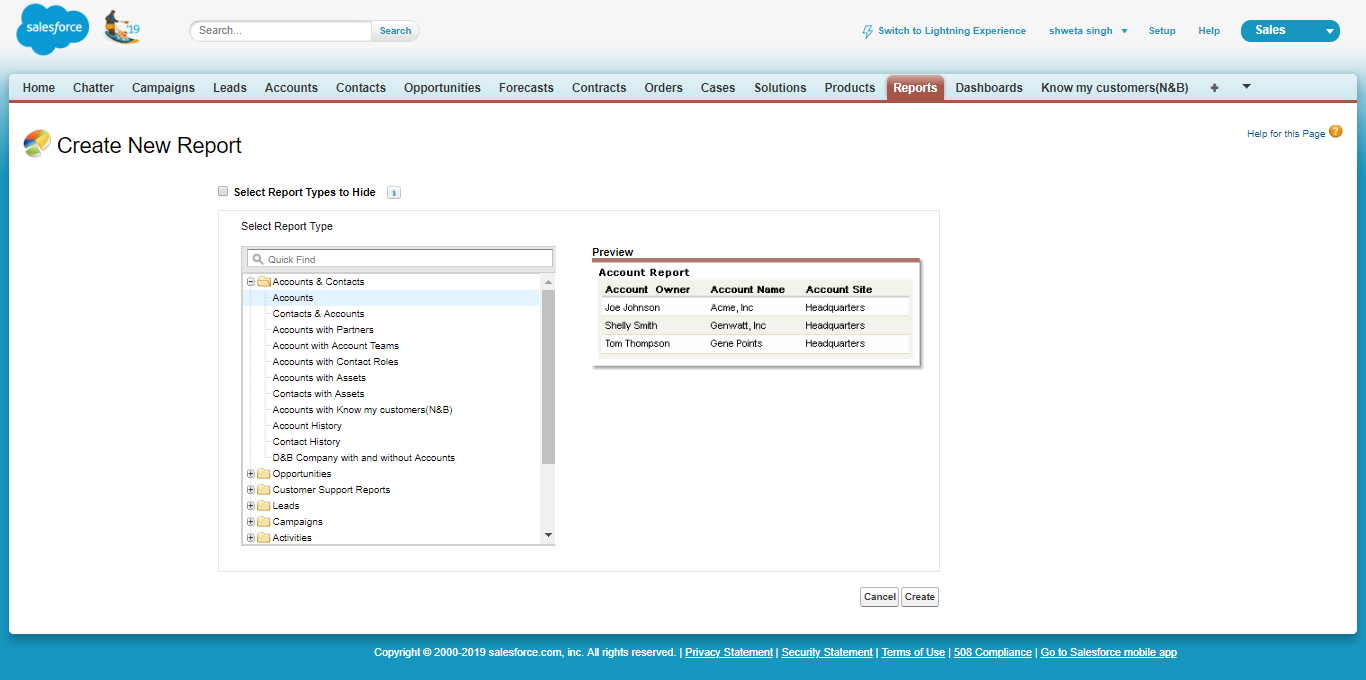
- Go to Report tab and click on New Report.
- Select report type Accounts and then click create.
- Click Add on filters and choose field on drop down list.
- Set the filter operator equals.
- Set the Range All Time select created date.
- Click on Run the report.


 Salesforce basic to advance